Quick Start
1. Input Parameters
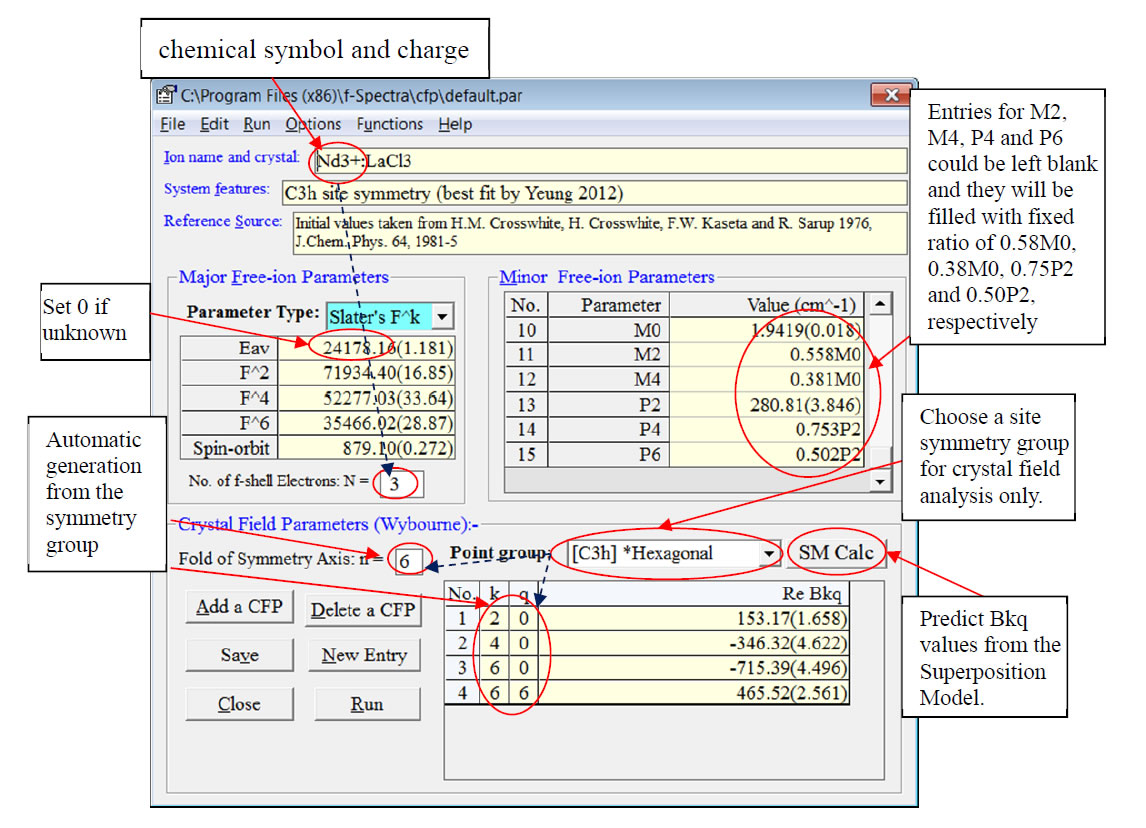
After running the f-Spectra Package, you would see the following Input Parameters window for the input or editing of the major and minor free-ion parameters as well as the crystal field parameters. Select File->New (or Load file) from the menu to create a new set of input parameters (or open an existing parameter file *.par).
Figure 1: Window for input of free-ion and crystal field parametersIf you cannot find the above window, you may click the menu Run->Input Parameters in the main window with the caption “f-Spectra (f-shell Spectroscopic Analysis Package)”.
For the first three entries, you must provide the correct chemical symbol and charge for a lanthanide (4f shell) or actinide (5f shell) ion name while the crystal, system features and reference source could be anything but there should be no quotation marks included. In the frame for the Major Free-ion Parameters, you may choose the appropriate type of the parameters (Racah or Slater) for the electron-electron repulsion while the first entry (Eav or E0) could be set to zero if you do not know. Initial or approximate values of those Racah or spin-orbit coupling parameters are widely available from the literature. The no. of f-shell electrons N should have been automatically generated after you entered the correct chemical symbol and charge (see the above Step 2.1.2) while the no. of fold of symmetry axis n could be a natural number from 1 to 6, depending on the actual site symmetry (for crystal field analysis). In the frame for Minor Free-ion Parameters, if you want to adopt the conventional practice to make Mk, Pk constrained as M0:M2:M4=1:0.56: 0.38 and P2: P4: P6 = 1: 0.75: 0.5, you just need to input the value of M0 and P2, leaving other Mk and Pk blank. Of course, you may use other ratios for them and then you need to input their actual values. In the frame for Crystal Field Parameters, you should first choose the appropriate point group for the site symmetry of the f-shell ion. For low-symmetry sites with complex crystal field, another column labelled with Im Bkq will appear for the input of the imaginary components of the Bkq parameters. You may choose other conventions (e.g. Stevens or unitary operators) for the crystal field parameters from the menu Functions->CFP conversion or rotate them in other coordinates frame by the menu Functions->Rotate CFP. Note that the bracket values are for the errors of the parameters concerned and they could be omitted (if unknown) but not be set zero. Choose File->Save File from the menu to save your input parameters in a plain text file with the default extension of *.par. You may open it with any word processor and the parameter values (but not its data structure) and must save it as a plain text file.2. Calculation of Crystal Field Energies
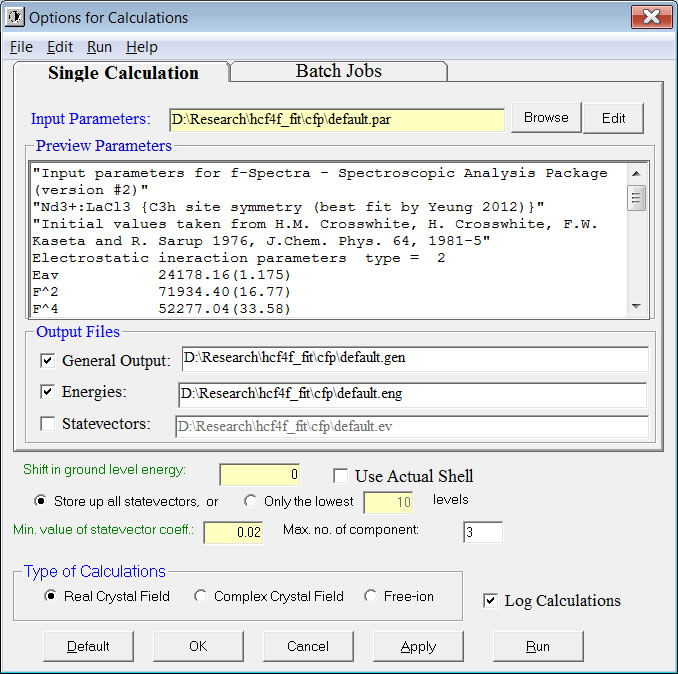
To calculate the energy levels using the given parameters, choose Run->Calculations with Options->Real/Complex Crystal Field from the menu. The following “Options for Calculations” window will be displayed.
If the default settings are OK, you should click the Run button to start the calculation which will usually be completed within a minute for a system with less than 4 or more than 10 f-shell electrons. For those systems with 4 to 10 f-shell electrons at low-symmetry sites, it may take several minutes up to around an hour, depending on the speed of your computing machine.
Three plain texts will be generated and shown with the following file name extension (with filename taken from that of the *.par file):
- *.eng for the label 2S+1LJ, crystal quantum number mu, irreducible representation IR, energy, Zeeman splitting and s’ (with second order correction), degeneracy and 3 largest statevector components of each crystal field level.
- *.ev for the coefficients of every statevector (quantum numbers for each statevector component are given at the beginning of the file).
- *.gen for general information of the fit or calculation, including input parameters, output energies and statevectors etc.
3. Fitting to Observed Crystal Field Energy Levels
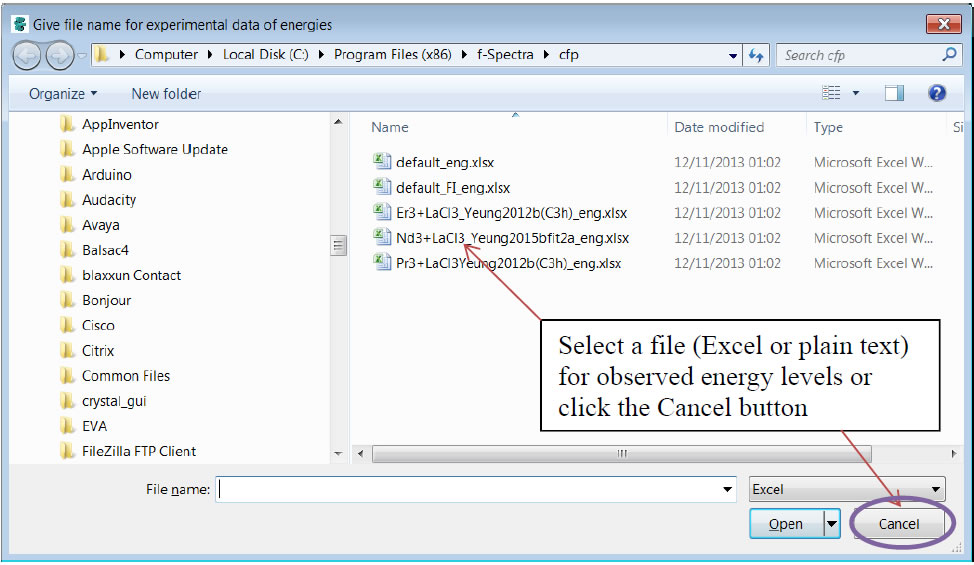
To start the crystal field fit, choose Run->Fit Real/Complex Crystal Field from the menu. Depending on the speed of your computer, you will get the following window “Get file of experimental data for energies” within a few minutes (for ions with 1-3 or 11-13 f-shell electrons) or up to a few hours (for ions with 6-8 f-shell electrons at low-symmetry sites). Choose an existing for the experimental energies which have been input into a specific format (see sample files like *eng.xls). You may select the example file called “default_eng.xls”.
Figure 2: window “Get file of experimental data for energies”
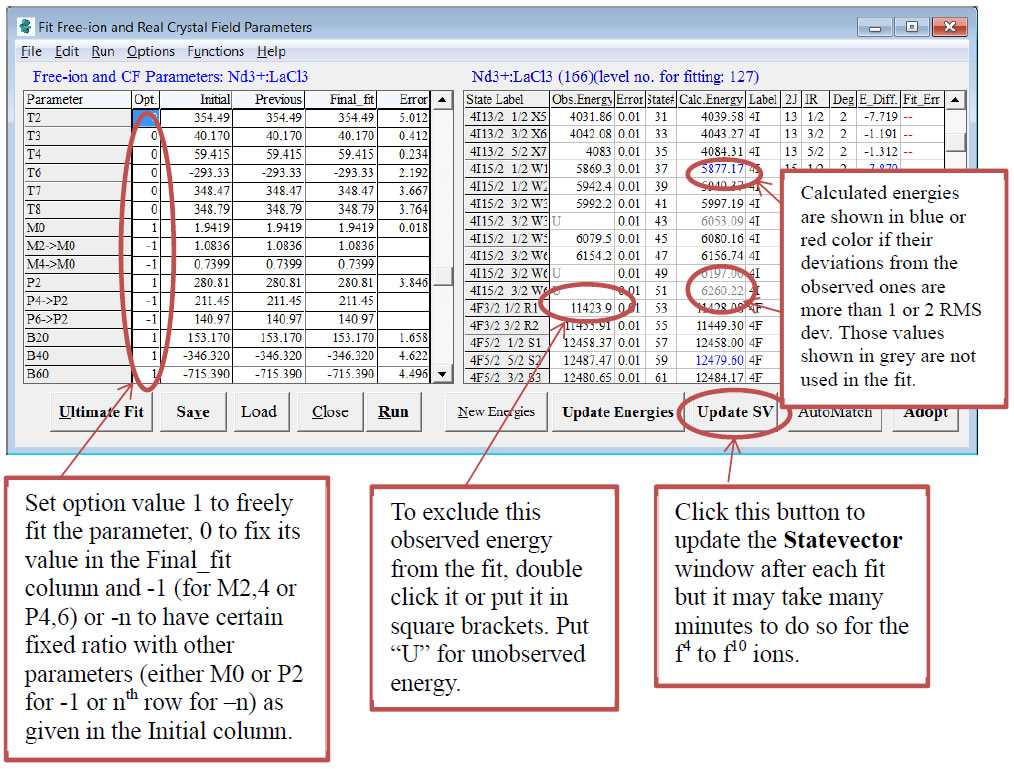
- Then, the following Fitting window will be displayed to show the input parameter values and the observed energies.
Figure 3: Fit Window to control the fit processes and to show the results of fits or calculations
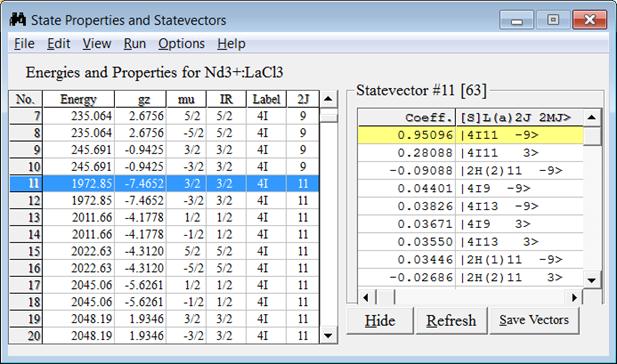
Click the [Update Energies] or [Update SV] button to get the calculated values of the energies and related spectroscopic properties which are further displayed in the State Properties and Statevectors window. When any state or row in the above RHS table is clicked, the corresponding statevector coefficient and quantum numbers will be shown in the RHS table of the Statevector window.
![]()
Figure 4: State Properties and Statevectors window to show the energies, spectroscopic properties (like the g-factor for Zeeman splitting, mu for crystal quantum number, IR for irreducible representation, (2S+1)L label and J value) and statevector components.
- In the LHS table of the Fit Window, set option value in the Opt. column as follows:
- 1 to freely fit the parameter,
- 0 to fix its value in the “Final_fit” column and
- -1 (for M2,4 or P4,6) to have certain fixed ratio with other parameters (either M0 or P2 for -1 or a particular parameter in the nth row for –n) as given in the Initial column. The linked parameter will be indicated with the “->” symbol.
To carry out the fit, click the [Run] button or select Run->Free-ion and CF parameters fit. After each round of fit, you should click the [Update Energies] or [Update SV] button to update the calculated values of the energies or statevectors (including update of energies). The latter process is required before you carry out any refit.
Under the Options menu, you may discard the values of the present fit as shown in the “Final_fit” column and reset them to those of the previous fit or to the initial values. You will probably need to run the fit several times until there is no significant change in the RMS Dev (root-mean-squares deviation) or to get out of any possible local minima in the fitting space. In the LHS table, note that N is the total number of observed energies selected for the fit and Np is the total number of freely-varying parameters (i.e. with value 1 in the Opt. column) involved in the fit. The S.E. (standard error), which is shown in the last row of the Error column, is defined as S.E. = SQRT(RMS dev/(N – Np)). If the results of fit are satisfactory, save the energies (RHS table) and parameters (LHS table) as two separate Excel or plain text files by choosing an appropriate command in the File menu. They could be re-used for future fits of other options or similar systems. The fitted values of parameters could be exported back to the Crystal Field Parameter window (see Figure 1) by selecting File->Export Parameters to Input window where the parameter values in the Final_fit and their errors will be updated.
[Previous: Introduction and Installation]|[Table of Contents]|[Next: Advanced Topics]
Copyright (C) 2016. YEUNG Yau Yuen. All Rights Reserved.